> ## Documentation Index
> Fetch the complete documentation index at: https://docs.kodus.io/llms.txt
> Use this file to discover all available pages before exploring further.
# Github FGPAT Token
> Generate the GitHub Fine-Grained PAT Kody needs for code review, including how to unblock access to your organization's repositories.
## Introduction to FGPAT
To enable Kody to perform automatic Code Reviews, you need to generate a Fine-Grained Personal Access Token (FGPAT) in GitHub. This token allows Kody to securely access your repositories and perform code analysis in a controlled manner.
## Check Fine-Grained Access Permissions
By default, a Fine-Grained PAT may not have access to your organization’s content. Ensure access by following these steps:
1. You must be the organization owner.
2. Go to your organization's settings in GitHub:
* You can use this URL replacing with your org name: [https://github.com/organizations/YOUR\_ORG\_NAME/settings/personal-access-tokens](https://github.com/organizations/YOUR_ORG_NAME/settings/personal-access-tokens)).
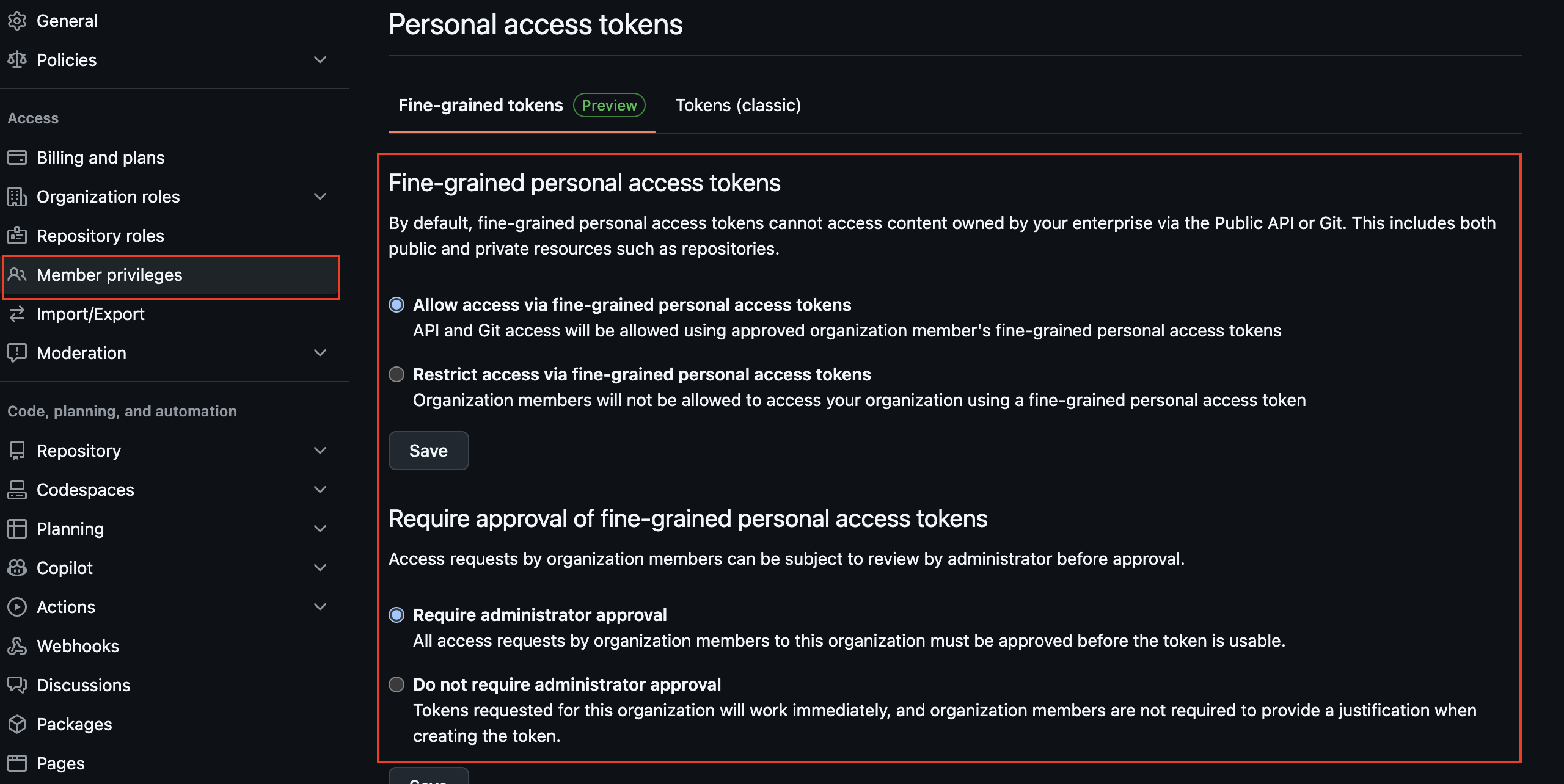
3. Under **Fine-Grained Personal Access Tokens**, select **"Allow access via fine-grained personal access tokens"** to enable secure access for Kody.
## Generating the FGPAT (Fine-Grained Personal Access Token)
Follow these steps to set up the token correctly:
1. **Access GitHub and go to your profile settings**:
* [Click here to access the profile settings page](https://github.com/settings/profile).
2. **Navigate to `Developer Settings`**:
* In the left sidebar, scroll down to find `Developer Settings` and click on it.
3. **Go to `Personal Access Tokens`**:
* Still in the left sidebar, under `Developer Settings`, select `Personal Access Tokens`.
* Then, click on [Fine-grained Tokens](https://github.com/settings/tokens?type=beta).
4. **Generate a new token**:
* Click the `Generate new token` button.
5. **Set up the new token with the following specifications**:
* **Token Name**: Choose an easily identifiable name, such as `kody_code_review`.
* **Expiration Date**: If possible, select a long expiration date, preferably at least 180 days.
* **Resource Owner**: Ensure the organization is set as the token owner, as the team’s repositories are under the organization.
* **Repository Access**: Select **All repositories** to allow the token access to all repositories.
* **Permissions**: Configure the following read-only permissions:
* **Repository**:
* **Actions**: Read permission.
* **Commit statuses**: Read permission.
* **Contents**: Read and write permission.
* **Deployments**: Read permission.
* **Issues**: Read permission.
* **Metadata**: Read permission.
* **Pull requests**: Read and write permission.
* **Webhooks**: Read and write permission.
* **Organization**:
* **Members**: Read permission.
6. **Finalize and save the token**:
* After setting up the permissions, click on `Generate token`.
* Make sure to copy the generated token and store it securely, as you’ll need it to configure Kody.
## Adding the Token to Kody
After generating the token, paste it in the Kody configuration screen for automation setup. The modal will open automatically as soon as you attempt to enable automation.
 1. You must be the organization owner.
2. Go to your organization's settings in GitHub:
* You can use this URL replacing with your org name: [https://github.com/organizations/YOUR\_ORG\_NAME/settings/personal-access-tokens](https://github.com/organizations/YOUR_ORG_NAME/settings/personal-access-tokens)).
3. Under **Fine-Grained Personal Access Tokens**, select **"Allow access via fine-grained personal access tokens"** to enable secure access for Kody.
## Generating the FGPAT (Fine-Grained Personal Access Token)
Follow these steps to set up the token correctly:
1. **Access GitHub and go to your profile settings**:
* [Click here to access the profile settings page](https://github.com/settings/profile).
2. **Navigate to `Developer Settings`**:
* In the left sidebar, scroll down to find `Developer Settings` and click on it.
3. **Go to `Personal Access Tokens`**:
* Still in the left sidebar, under `Developer Settings`, select `Personal Access Tokens`.
* Then, click on [Fine-grained Tokens](https://github.com/settings/tokens?type=beta).
4. **Generate a new token**:
* Click the `Generate new token` button.
5. **Set up the new token with the following specifications**:
* **Token Name**: Choose an easily identifiable name, such as `kody_code_review`.
* **Expiration Date**: If possible, select a long expiration date, preferably at least 180 days.
* **Resource Owner**: Ensure the organization is set as the token owner, as the team’s repositories are under the organization.
* **Repository Access**: Select **All repositories** to allow the token access to all repositories.
* **Permissions**: Configure the following read-only permissions:
* **Repository**:
* **Actions**: Read permission.
* **Commit statuses**: Read permission.
* **Contents**: Read and write permission.
* **Deployments**: Read permission.
* **Issues**: Read permission.
* **Metadata**: Read permission.
* **Pull requests**: Read and write permission.
* **Webhooks**: Read and write permission.
* **Organization**:
* **Members**: Read permission.
6. **Finalize and save the token**:
* After setting up the permissions, click on `Generate token`.
* Make sure to copy the generated token and store it securely, as you’ll need it to configure Kody.
## Adding the Token to Kody
After generating the token, paste it in the Kody configuration screen for automation setup. The modal will open automatically as soon as you attempt to enable automation.
1. You must be the organization owner.
2. Go to your organization's settings in GitHub:
* You can use this URL replacing with your org name: [https://github.com/organizations/YOUR\_ORG\_NAME/settings/personal-access-tokens](https://github.com/organizations/YOUR_ORG_NAME/settings/personal-access-tokens)).
3. Under **Fine-Grained Personal Access Tokens**, select **"Allow access via fine-grained personal access tokens"** to enable secure access for Kody.
## Generating the FGPAT (Fine-Grained Personal Access Token)
Follow these steps to set up the token correctly:
1. **Access GitHub and go to your profile settings**:
* [Click here to access the profile settings page](https://github.com/settings/profile).
2. **Navigate to `Developer Settings`**:
* In the left sidebar, scroll down to find `Developer Settings` and click on it.
3. **Go to `Personal Access Tokens`**:
* Still in the left sidebar, under `Developer Settings`, select `Personal Access Tokens`.
* Then, click on [Fine-grained Tokens](https://github.com/settings/tokens?type=beta).
4. **Generate a new token**:
* Click the `Generate new token` button.
5. **Set up the new token with the following specifications**:
* **Token Name**: Choose an easily identifiable name, such as `kody_code_review`.
* **Expiration Date**: If possible, select a long expiration date, preferably at least 180 days.
* **Resource Owner**: Ensure the organization is set as the token owner, as the team’s repositories are under the organization.
* **Repository Access**: Select **All repositories** to allow the token access to all repositories.
* **Permissions**: Configure the following read-only permissions:
* **Repository**:
* **Actions**: Read permission.
* **Commit statuses**: Read permission.
* **Contents**: Read and write permission.
* **Deployments**: Read permission.
* **Issues**: Read permission.
* **Metadata**: Read permission.
* **Pull requests**: Read and write permission.
* **Webhooks**: Read and write permission.
* **Organization**:
* **Members**: Read permission.
6. **Finalize and save the token**:
* After setting up the permissions, click on `Generate token`.
* Make sure to copy the generated token and store it securely, as you’ll need it to configure Kody.
## Adding the Token to Kody
After generating the token, paste it in the Kody configuration screen for automation setup. The modal will open automatically as soon as you attempt to enable automation.